

Lab 1: Expressions and Data Types
Due Saturday, October 1st at 11:59PM
Welcome to DSC 10! Each week, you will complete a lab assignment like this one. You can think of the labs as being hands-on, interactive reading assignments where you'll get practical experience with the topics from lecture. In a given week, the lab will prepare you for the homework assignment, so make sure to work on the lab first.
Labs are usually due Saturdays; you should complete this entire lab so that all tests pass and submit it to Gradescope by 11:59PM on Saturday, October 1st.
Each person must submit each lab independently, but you are encouraged to discuss the lab with other students (no sharing code). If you get stuck at any point during the lab, make sure to look through the lecture notebooks and readings linked on the course website. You can also post on EdStem or come to office hours (check the Calendar on the course website for the schedule).
This week's lab will cover the basics of Python and Jupyter Notebooks. You'll learn how to:
Navigate Jupyter notebooks (like this one)
Write and evaluate some basic expressions in Python, a popular programming language
Call functions to use code that other people have written
Break down Python code into smaller parts to understand it
Work with another type of data: text
Invoke methods and import code
This lab references BPD 1-6 in the babypandas notes; make sure to check them out, especially if you run into trouble.
Part 1: Jupyter Notebooks and Python Basics
1. Jupyter notebooks
This webpage is called a Jupyter notebook. A notebook is a place to write programs and view their results.
1.1. Text cells
In a notebook, each rectangle containing text or code is called a cell.
Text cells (like this one) can be edited by double-clicking on them. They're written in a simple format called Markdown that allows us to add formatting and section headings. You don't need to learn Markdown, but you might want to.
Question 1.1.1. This paragraph is in its own text cell. Try editing it so that this sentence is the last sentence in the paragraph, and then click the "run cell" ▶ button at the top of the page. This sentence, for example, should be deleted. So should this one.
1.2. Code cells
Other cells contain code in the Python 3 programming language. Running a code cell will execute all of the code it contains.
To run the code in a code cell, first click on that cell to activate it. It'll be highlighted with a little green or blue rectangle. Next, either press ▶ or hold down the shift key and press return or enter on your keyboard. It is much, much faster to use the keyboard shortcut!
Try running this cell:
And this one:
You should see a dog and a bone.
The fundamental building block of Python code is an expression. Cells can contain multiple lines with multiple expressions. When you run a cell, the lines of code are executed in the order in which they appear. Every print expression prints a line. Run the next cell and notice the order of the output.
Question 1.2.1. Change the cell above so that it prints out exactly:
Hint: If you're stuck for more than a few minutes, try talking to a classmate, tutor, or TA. That's a good idea for any lab problem.
1.3. Writing Jupyter notebooks
You can use Jupyter notebooks for your own projects or documents. When you make your own notebook, you'll need to create your own cells for text and code.
To add a cell, click the + button in the menu bar. It will start out as a text cell. You can change it to a code cell by clicking inside it so it's highlighted, clicking the drop-down box next to the restart (⟳) button in the menu bar, and choosing "Code".
Question 1.3.1. Add a code cell below this one. Write code in it that prints out:
(That musical note symbol is like the cookie symbol. Its long-form name is \N{EIGHTH NOTE}.)
Run your cell to verify that it works.
1.4. Errors
Python is a language, and like natural human languages, it has rules. It differs from natural language in two important ways:
The rules are simple. You can learn most of them in a few weeks and gain reasonable proficiency with the language in a quarter.
The rules are rigid. If you're proficient in a natural language, you can understand a non-proficient speaker, glossing over small mistakes. A computer running Python code is not smart enough to do that.
Whenever you write code, you'll make mistakes. When you run a code cell that has errors, Python will sometimes produce error messages to tell you what you did wrong.
Errors are okay; even experienced programmers make many errors. When you make an error, you just have to find the source of the problem, fix it, and move on.
We have made an error in the next cell. Run it and see what happens.
You should see something like this (minus our annotations):

The last line of the error output attempts to tell you what went wrong. The syntax of a language is its structure, and this SyntaxError tells you that you have created an illegal structure. "EOF" means "end of file," so the message is saying Python expected you to write something more (in this case, a right parenthesis) before finishing the cell.
There's a lot of terminology in programming languages, but you don't need to know it all in order to program effectively. If you see a cryptic message like this, you can often get by without deciphering it. Of course, if you're frustrated, ask for help. You can also feel free to Google the error message to get a better sense of what it means and what the problem might be. Computer programmers do this all the time!
Try to fix the code above so that you can run the cell and see the intended message instead of an error.
2. Numbers
Quantitative information arises everywhere in data science. In addition to representing commands to print out lines, expressions can represent numbers and methods of combining numbers. The expression 3.2500 evaluates to the number 3.25. (Run the cell and see.)
Notice that we didn't have to print. When you run a notebook cell, if the last line has a value, then Jupyter helpfully prints out that value for you. However, it won't print out prior lines automatically.
Above, you should see that 4 is the value of the last expression, 2 is printed, but 3 is lost forever because it was neither printed nor last.
You don't want to print everything all the time anyway. But if you feel sorry for 3, change the cell above to print it.
2.1. Arithmetic
The line in the next cell subtracts. Its value is what you'd expect. Run it.
Many basic arithmetic operations are built in to Python. Note 3 describes all the arithmetic operators used in the course. The common operator that differs from typical math notation is **, which raises one number to the power of the other. So, 2**3 stands for and evaluates to 8.
The order of operations is what you learned in elementary school, and Python also has parentheses. For example, compare the outputs of the cells below.
In standard math notation, the first expression is
while the second expression is
Question 2.1.1. Write a Python expression in the next cell that's equal to
Replace the ellipses (...) with your expression. Try to use parentheses only when necessary. If you do this correctly, the number will be very familiar.
Some guidance:
is the mixed fraction "five and one third", not .
is the same as .
3. Names
In natural language, we have terminology that lets us quickly reference very complicated concepts. We don't say, "That's a large mammal with brown fur and sharp teeth that lives throughout California and supposedly really enjoys honey!" Instead, we just say, "Bear!"
Similarly, an effective strategy for writing code is to define names for data as we compute it, like a lawyer would define terms for complex ideas at the start of a legal document to simplify the rest of the writing. Another word for "name" is "variable".
3.1. Assignment statements
In Python, we do this with assignment statements. An assignment statement has a name on the left side of an = sign and an expression to be evaluated on the right.
When you run that cell, Python first evaluates the first line. It computes the value of the expression 3 * 2 + 4, which is the number 10. Then it gives that value the name ten. At that point, the code in the cell is done running.
After you run that cell, the value 10 is bound to the name ten:
The statement ten = 3 * 2 + 4 is not asserting that ten is already equal to 3 * 2 + 4, as we might expect by analogy with math notation. Rather, that line of code changes what ten means; it now refers to the value 10, whereas before it meant nothing at all.
If the designers of Python had been ruthlessly pedantic (like lawyers), they might have made us write
instead. You will probably appreciate the brevity of "="! But keep in mind that this is the real meaning.
Question 3.1.1. Try writing code that uses a name (like eleven) that hasn't been assigned to anything. You'll see an error!
A common pattern in Jupyter notebooks is to assign a value to a name and then immediately evaluate the name in the last line in the cell so that the value is displayed as output.
Another common pattern is that a series of lines in a single cell will build up a complex computation in stages, naming the intermediate results.
Names in Python can have letters (upper- and lower-case letters are both okay and count as different letters), underscores, and numbers. The first character can't be a number (otherwise a name might look like a number). And names can't contain spaces, since spaces are used to separate pieces of code from each other.
Other than those rules, what you name something doesn't matter to Python. For example, this cell does the same thing as the above cell, except everything has a different name:
However, names are very important for making your code readable to yourself and others. The cell above is shorter, but it's totally useless without an explanation of what it does.
According to a famous joke among computer scientists, naming things is one of the two hardest problems in computer science. (The other two are cache invalidation and "off-by-one" errors. And people say computer scientists have an odd sense of humor...)
Question 3.1.2. Assign the name seconds_in_a_day to the number of seconds in a day. Although you could use a calculator or ask Google, try computing the answer with Python code.
3.2. Checking your code
Each assignment in DSC 10 includes a set of built-in tests to help you towards the right answer. We'll use a piece of software called otter to run these tests and to grade your assignment.

Run the cell below to load otter:
Below, you should see a question, a place to write your answer, and another cell containing grader.check('q3_2_1'). Running this last cell will check your answer to the question. If it is wrong, it will give you a helpful error message! Try putting in the wrong answer first, just to try it out.
Question 3.2.1. How many seconds are in an hour?
Make sure to never change the cell that runs the test. If you change that cell, the test might not run, and the autograder will not give you credit for that question.
Question 3.2.2. Assign the name seconds_in_a_decade to the number of seconds between midnight January 1, 2010 and midnight January 1, 2020.
Hint: If you're stuck, make sure to read the output of the test carefully for tips. It may look like a mess, but there's some helpful stuff in there.
One of the big differences between labs and homeworks is how the tests work. In a lab, the test checks that your answer is right -- if you pass all of the tests in the lab, congratulations: you'll get a score of 100%!
On the other hand, the tests in the homeworks only check that your answer is reasonable. For example, if the question asks you to calculate a percent, the test in the homework might check that the answer you provide is a number between 0 and 100.
We run a separate set of tests on your notebook at a later time to check for correctness. Then we might check that you computed the correct percentage, say 56 percent, and you'll only get credit for the homework problem if you have that exact number. Therefore your homework may pass all of the tests when you submit it, but still not earn a perfect score!
3.3. Comments
What is the # doing in the code below?
That is called a comment. It doesn't make anything happen in Python; Python ignores anything on a line after a #. Instead, it's there to communicate something about the code to you, the human reader. Comments are extremely useful for improving the readability of your code. You should write them often to explain to anyone else looking at your code (or to yourself in the future!) what your code is doing.
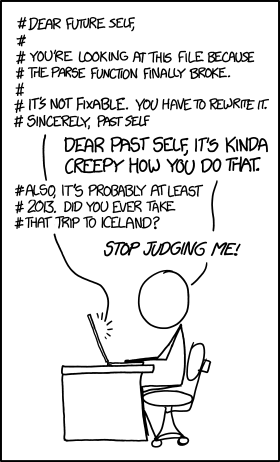
One (mis)use of comments is to prevent code from running. For instance, run the cell below...
Now place a # in front of the 1 / 0 and re-run the cell. The error is gone!
This might be considered a misuse of comments, because you should probably just remove code that isn't running. Still, it has its uses.
3.4. Weirdness
If at any time something seems strange -- Jupyter isn't acting how you expect it to, you're not seeing any output, etc. -- try this first. Select Kernel -> Restart & Run All. This will "restart" Python, causing it to forget all of the variables that have been defined so far. Then the entire notebook will be run from top to bottom. Don't worry, you won't lose any work by doing this.
Try it now! We'll wait...
Did something go wrong? You might notice that it looks like Python evaluated part of your notebook, but only got so far before stopping. You can tell because most cells still have In [ ] next to them; if a cell has been run, it will have a number, too, like In [3]. What gives?
Remember back in Section 1.4 we included some code that raises an error. When you run Kernel -> Restart & Run All, Python will evaluate the cells of your notebook one-by-one until it encounters an error. At this point it stops and gives up. That's probably the right thing for it to do, since the cells to come might depend on the cell that had an error. You can get Python to evaluate the remaining cells by fixing the error above (and any other errors that might still be around).
You might see some errors below this cell, but that's OK: they're just saying that you haven't defined a variable that another piece of code was expecting. Of course not -- we haven't completed that part of the notebook yet!
4. Calling functions
The most common way to combine or manipulate values in Python is by calling (that is, using) functions. Python comes with many built-in functions that perform common operations.
For example, the abs function takes a single number as its argument and returns the absolute value of that number. The absolute value of a number is its distance from 0 on the number line, so abs(5) is 5 and abs(-5) is also 5.
Multiple arguments
Some functions take multiple arguments (or inputs), separated by commas. For example, the built-in max function needs at least one input, and it returns the largest such input.
4.1. Understanding nested expressions
Function calls and arithmetic expressions can themselves contain expressions. For example:
has 2 number expressions in a subtraction expression in a function call expression.
Nested expressions can turn into complicated-looking code. However, the way in which complicated expressions break down is very regular. Here's an example:
Suppose we are interested in heights that are very unusual. We'll say that a height is unusual to the extent that it's far away on the number line from the average human height. One estimate of the average adult human height (averaging, we hope, over all humans on Earth today) is 1.688 meters.
So if Aditya is 1.21 meters tall, then his height is , or , meters away from the average. Here's a picture of that:

And here's how we'd write that in one line of Python code:
What's going on here? abs takes just one argument, so the stuff inside the parentheses is all part of that single argument. Specifically, the argument is the value of the expression 1.21 - 1.688. The value of that expression is -0.478. That value is the argument to abs. The absolute value of that is 0.478, so 0.478 is the value of the full expression abs(1.21 - 1.688).
Imagine simplifying the expression in several steps:
abs(1.21 - 1.688)abs(-0.478)0.478
That's essentially what Python does to compute the value of the expression.
Question 4.1.1. Say that Botan's height is 1.85 meters. In the next cell, use abs to compute the absolute value of the difference between Botan's height and the average human height. Give that value the name botan_distance_from_average_m.

4.2. More nesting
Now say that we want to compute the most unusual height among Aditya's and Botan's heights. We'll use the function max, which (again) takes two numbers as arguments and returns the larger of the two arguments. Combining that with the abs function, we can compute the biggest distance from the average among the two heights:
The line where biggest_distance_m is computed looks complicated, but we can break it down into simpler components just like we did before.
The basic recipe is repeated simplification of small parts of the expression:
We start with the simplest components whose values we know, like plain names or numbers. (Examples:
aditya_height_mor5.)Find a simple-enough group of expressions: We look for a group of simple expressions that are directly connected to each other in the code, for example by arithmetic or as arguments to a function call.
Evaluate that group: We evaluate the arithmetic expressions or function calls they're part of, and replace the whole group with whatever we compute. (Example:
aditya_height_m - average_adult_human_height_mbecomes-0.478.)Repeat: We continue this process, using the values of the glommed-together stuff as our new basic components. (Example:
abs(-0.478)becomes0.478, andmax(0.478, 0.162)later becomes0.478.)We keep doing that until we've evaluated the whole expression.
You can run the next cell to see a slideshow of that process.
Ok, your turn.
Question 4.2.1. Given the heights of the three best players on this year's Los Angeles Lakers 🏀 (LeBron James, Anthony Davis, and Russell Westbrook), write an expression that computes the minimum difference between any of the three heights. Your expression shouldn't have any numbers in it, only function calls and the names lebron, anthony, and russell. Give the value of your expression the name min_height_difference.
4.3. Putting it all together
Let's revisit everything we've seen so far.
The two building blocks of Python code are expressions and statements. To be clear, an expression is a piece of code that
is self-contained, meaning it would make sense to write it on a line by itself, and
usually has a value.
Here are two expressions that both evaluate to 3
One important form of an expression is the call expression, which first names a function and then describes its arguments. The function returns some value, based on its arguments. We've already seen abs, max, and min – here are those, along with some others:
| Function | Description |
|---|---|
abs | Returns the absolute value of its argument |
max | Returns the maximum of all its arguments |
min | Returns the minimum of all its arguments |
pow | Raises its first argument to the power of its second argument |
round | Round its argument to the nearest integer |
Here are two call expressions. The first evaluates to 5, the second evaluates to 3.
Both of the above expressions are compound expressions, meaning that they are actually combinations of several smaller expressions. 2 + 3 combines the expressions 2 and 3 by addition. In this case, 2 and 3 are called subexpressions because they're expressions that are part of a larger expression.
A statement is a whole line of code. Some statements are just expressions. The expressions listed above are examples.
Other statements make something happen rather than having a value. After they are run, something in the world has changed. For example, an assignment statement assigns a value to a name.
A good way to think about this is that we're evaluating the right-hand side of the equals sign and assigning it to the left-hand side. Here are some assignment statements:
A key idea in programming is that large, interesting things can be built by combining many simple, uninteresting things. The key to understanding a complicated piece of code is breaking it down into its simple components.
For example, a lot is going on in the last statement above, but it's really just a combination of a few things. This picture describes what's going on.

Let's try one more problem.
Question 4.3.1. In the next cell, assign the name new_year to the larger number among the following two numbers:
the absolute value of , and
.
Try to use just one statement (one line of code).
Part 2: Data Types
In Part 1, we had our first look at Python and Jupyter notebooks. So far, we've only used Python to manipulate numbers. There's a lot more to life than numbers, so Python lets us represent many other types of data in programs.
In this part, you'll first see how to represent and manipulate another fundamental type of data: text. A piece of text is called a string in Python.
You'll also see how to invoke methods. A method is very similar to a function. It just looks a little different because it's tied to a particular piece of data (like a piece of text or a number).
5. Text
Programming doesn't just concern numbers. Text is one of the most common types of values used in programs.
5.1. Introduction to strings
A snippet of text is represented by a string value in Python. The word "string" is a programming term for a sequence of characters. A string might contain a single character, a word, a sentence, or a whole book.
To distinguish text data from actual code, we demarcate strings by putting quotation marks around them. Single quotes (') and double quotes (") are both valid, but the types of opening and closing quotation marks must match. The contents can be any sequence of characters, including numbers and symbols.
We've seen strings before in print statements. Below, two different strings are passed as arguments to the print function.
Just like names can be given to numbers, names can be given to string values. The names and strings aren't required to be similar in any way. Any name can be assigned to any string.
Question 5.1.1. Yuri Gagarin was the first person to travel through outer space. When he emerged from his capsule upon landing on Earth, he reportedly had the following conversation with a woman and girl who saw the landing:
The cell below contains unfinished code. Fill in the ...s so that it prints out this conversation exactly as it appears above.
5.2. String methods
Strings can be transformed using methods, which are functions that involve an existing string and some other arguments. One example is the replace method, which replaces all instances of some part of a string with some alternative.
A method is invoked on a string by placing a . after the string value, then the name of the method, and finally parentheses containing the arguments. Here's a sketch, where the < and > symbols aren't part of the syntax; they just mark the boundaries of sub-expressions.
Try to predict the output of these examples, then execute them.
Once a variable is bound to a string value, methods can be invoked on that variable as well (remember, "variable" is another word for "name"). The variable sharp doesn't change in this case, so a new variable is needed to capture the result.
You can call functions on the results of other functions. For example,
has value 5. Similarly, you can invoke methods on the results of other method (or function) calls. We will do this quite often.
Here's a picture of how Python evaluates a "chained" method call like that:

Question 5.2.1. Assign strings to the names you and this so that by the end of the cell, the name the contains a 10-letter English word with three double letters in a row.
Hint: After you guess at some values for you and this, you may want to look at the value of the after the line the = a.replace('p', you) is run, but before the line the = the.replace('bee', this) is run. To do this, add a print statement between those two lines:
Hint 2: Run the tests if you're stuck. They'll often give you help.
Other string methods do not take any arguments at all, because the original string is all that's needed to compute the result. In this case, parentheses are still needed, but there's nothing in between the parentheses. Here are some methods that work that way:
| Method name | Value |
|---|---|
lower | a lowercased version of the string |
upper | an uppercased version of the string |
capitalize | a version with the first letter capitalized |
title | a version with the first letter of every word capitalized |
All these string methods are useful, but most programmers don't memorize their names or how to use them. In the "real world," people usually just search the internet for documentation and examples. A complete list of string methods appears in the Python language documentation. Stack Overflow has a huge database of answered questions that often demonstrate how to use these methods to achieve various ends. In this class, you are more than welcome to use these and other internet resources to learn about Python methods and how to use them.
5.3. Converting to and from strings
Strings and numbers are different types of values, even when a string contains the digits of a number. For example, evaluating the following cell causes an error because an integer cannot be added to a string.
Tip: you might want to "comment out" the code in the cell above so that it doesn't result in an error.
However, there are built-in functions to convert numbers to strings and strings to numbers.
Try to predict what the following cell will evaluate to, then evaluate it.
Suppose you're writing a program that looks for dates in text, and you want your program to find the amount of time that elapsed between two years it has identified. It doesn't make sense to subtract two pieces of text, but you can first convert the text containing the years into numbers.
Question 5.3.1. Finish the code below to compute the number of years that elapsed between one_year and another_year. Don't just write the numbers 1618 and 1648 (or the answer, 30); use a conversion function to turn the given text data into numbers.
5.4. Strings as function arguments
String values, like numbers, can be arguments to functions and can be returned by functions. The function len takes a single string as its argument and returns the number of characters in the string: its len-gth.
Note that it doesn't count words. len("one small step for man") is 22, not 5. It does count spaces as characters.
Question 5.4.1. Use len to find out the number of characters in the very long string in the next cell. (It's the first sentence of the English translation of the French Declaration of the Rights of Man.) The length of a string is the total number of characters in it, including things like spaces and punctuation. Assign sentence_length to that number.
6. Importing code
What has been will be again, what has been done will be done again; there is nothing new under the sun.
Most programming involves work that is very similar to work that has been done before. Since writing code is time-consuming, it's good to rely on others' published code when you can. Rather than copy-pasting, Python allows us to import other code, creating a module that contains all of the names created by that code. This is a programmer's way of attributing the material to the original creator, as you should always do!
Python includes many useful modules that are just an import away. We'll look at the math module as a first example. The math module is extremely useful in computing mathematical expressions in Python.
6.1. Importing constants
Suppose we want to very accurately compute the area of a circle with radius 5 meters. For that, we need the constant , which is roughly 3.14. Conveniently, the math module has pi defined for us:
pi is defined inside math, and the way that we access names that are inside modules is by writing the module's name, then a dot, then the name of the thing we want:
In order to use a module at all, we must first write the statement import <module name>. That statement creates a module object with things like pi in it and then assigns the name math to that module. Above we have done that for math.
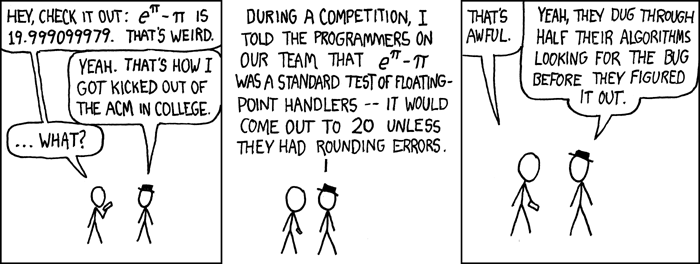
Question 6.1.1. math also provides the name e for the base of the natural logarithm, which is roughly 2.71. Compute , giving it the name near_twenty.
6.2. Importing functions
Modules can provide other named things besides constants, including functions. For example, math provides the name sin for the sine function. Having imported math already, we can write math.sin(3) to compute the sine of 3.
Note that this sine function considers its argument to be in radians, not degrees. 180 degrees are equivalent to radians.
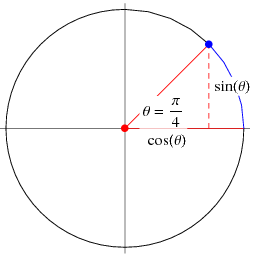
Question 6.2.1. A -radian (45-degree) angle forms a right triangle with equal base and height, pictured below. If the hypotenuse (the radius of the circle in the picture) is 1, then the height is . Compute that height using sin and pi from the math module. Give the result the name sine_of_pi_over_four.
Source: Wolfram MathWorld
For your reference, here are some more examples of functions from the math module.
Note how different methods take in different number of arguments. Often, the documentation of the module will provide information on how many arguments is required for each method.
7. Beginning of Quarter Survey
Make sure that you've completed the Welcome Survey, linked here. You must complete it in order for you to receive any grades in this course.
Once you've completed the survey, assign the variable done_survey to the string 'done'.
Optional: Video on Navigating DataHub and Jupyter Notebooks
Last quarter, we put together a video that explains how DataHub works and how to navigate your way around a Jupyter Notebook. Now that you're somewhat familiar with the idea of a notebook, we recommend you watch this video to make sure you're comfortable with these tools.
The video is quite long. There are timestamps in the description of the video that allow you to jump to particular points of interest. (In particular, you can skip 6:30-9:55, as that part is not all that relevant for now.) You can also come back to this video in the future since it's linked in the Supplemental Videos section of the Resources tab on the course website.
Run the cell below to see the video. (Yes, you can watch videos 🎥 within Jupyter Notebooks!)
Finish Line
Congratulations! You've finished the first lab, and hopefully learned something about Python programming! 🥳
The instructions at the bottom of the notebook tell you how to submit the lab. If you'd rather see the steps in a video, run the cell below. (The most relevant part starts at 3:00, though you're free to watch the entire video.)
To submit your lab:
Select
Kernel -> Restart & Run Allto ensure that you have executed all cells, including the test cells.Read through the notebook to make sure everything is fine and all tests passed.
Run the cell below to run all tests, and make sure that they all pass.
Download your notebook using
File -> Download as -> Notebook (.ipynb), then upload your notebook to Gradescope under "Lab 1".