

Path: blob/main/Lesson 5 - Data structures.ipynb
1128 views
Lesson 5 - Data structures
Authors:
Yilber Fabian Bautista
Sean Tulin
For numerical calculations, it is important to consider how numerical data will be organized. We already learned about lists and arrays, which are examples of data structures and are useful for organizing numerical values.
Here we introduce new types of data structures. First, we introduce dictionaries, which are built-in to Python. Second, we introduce the pandas library, which the most widely-used Python library for data analysis.
Objectives:
Learn how to use Python dictionaries
Gain familiarity and perform basic tasks with the
pandaslibrary:Learn how to use DataFrames
Learn how to create, modify, save, and read data files in csv (comma separated values) format
Plot data using
pandaslibrary
Dictionaries
A dictionary consists of keys and values assigned to those keys, often referred to as key-value pairs. Since dictionaries have similar characteristics to lists, it is helpful to compare these two
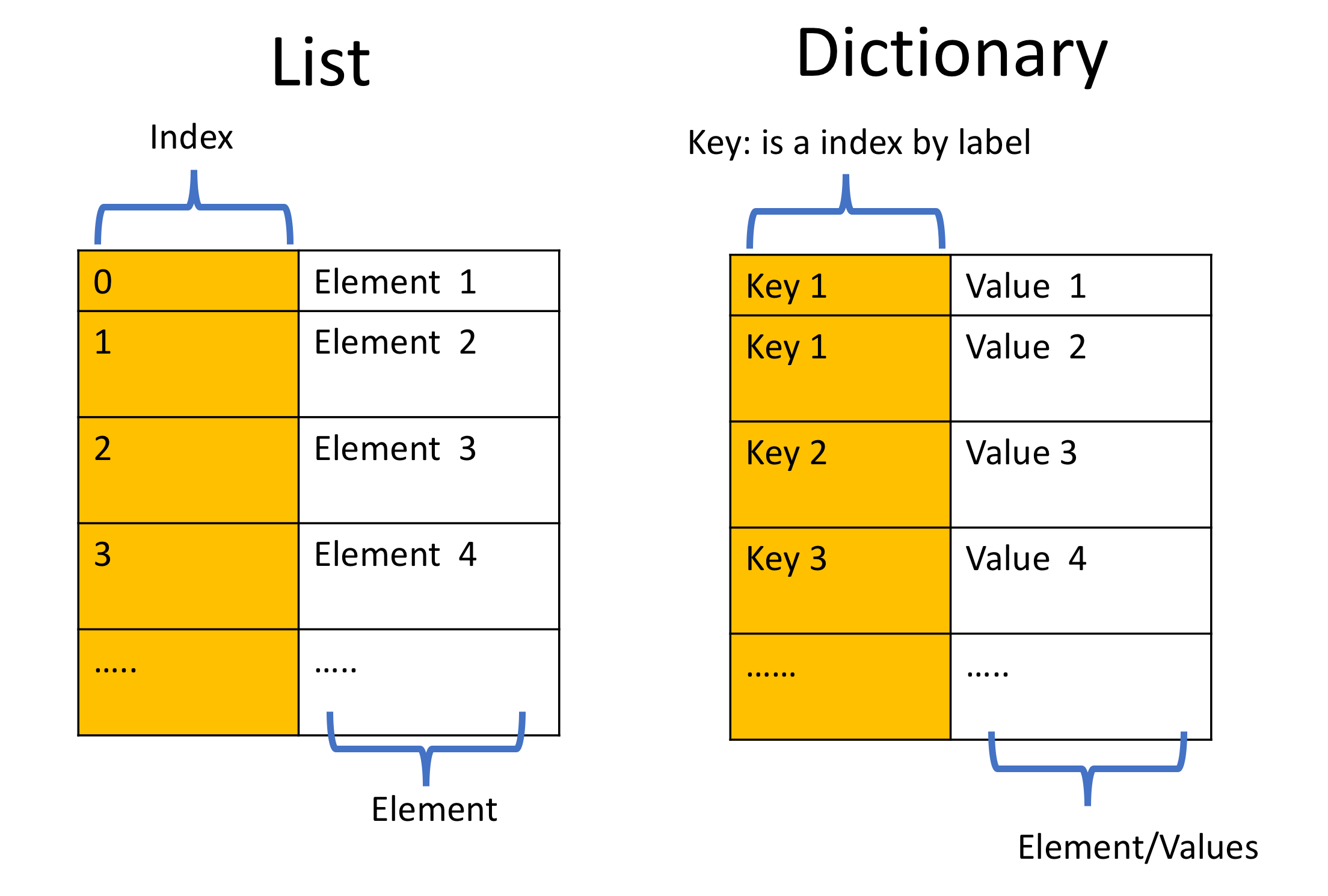
Figure taken from IBM courses
Instead of the numerical indices, dictionaries are indexed by keys. Keys are typically strings, but any non-mutable objects (like tuples) can also serve as a key. Keys play the role of indices used to access values within a dictionary.
Similar to lists, dictionaries are mutable objects, which means we can modify them, change values for a given key, add new key-value pairs, etc.
The python syntax to create a dictionary is as follows. Here is a simple dictionary with one key-value pair.
Larger dictionaries are created by separating each key-value pair with a comma, e.g.,
The type of a dictionary is dict.
Let's create our first dictionary in python below. Note we illustrate:
Keys need not all be the same type. Typically, all keys will be strings, but other types can be keys too.
Values also need not be the same type, similar to lists and tuples.
Accessing the keys of a dictionary:
Every dictionary has a built-in method keys() to obtain a list of the keys of the dictionary (if you do not know them ahead of time).
Accessing the value by the key:
To access the value for given key, we have two options:
Using square brackets similar to accessing elements of a list:
Using the built-in method
get():
Both options will return the output 1. However, they behave differently if a key is not in the dictionary. For example, my_dictionary['key7'] will produce an error message, while my_dictionary.get('key7') will yield None (with no error message). You can use a syntax like
to perform an action only if 'key' is found in the dictionary.
Adding new key-value pairs to the dictionary
For lists and arrays we would had use the list.append(value) and np.append(array,value) methods respectively. For dictionaries instead, we will use the following syntax:
Remove a key-value pair from a dictionary
To remove a key-value pair, we use the pop() method. For instance,
will set value equal to 'new_value' and it will delete this key-value pair from our dictionary. Now if we ask for the keys of our dictionary
we will get as output dict_keys(['key1', 'key2', 'key3', 'key4', 'key5', (0, 1)]). If we wanted to delete this key-value pair without retaining the value, we can simply do
without assigning it to a variable.
See this link for additional methods applied to dictionaries
Exercise 1
Type out all the commands yourself for the previous lines of code.
Given the following dictionaries, write short line codes to answer the following questions (See this page for more exercises with dictionaries):
When was Plato born?
Change Plato's birth year from B.C. 427 to B.C. 428.
Add the key "work" to
dictionary_1, with the values "Apology", "Phaedo", "Republic", "Symposium" in a list.Add 2 inches to the son's height in
dictionary_2.Using the
.get()method, print the value of"son's eyes".Merge
dictionary_1anddictionary_2into the dictionarydictionary_merge, using the syntax:
and print the list of keys in dictionary_merge.
The pandas library
The pandas library is used to efficiently manipulate tabular data such as data stored in spreadsheets or databases, and to do statistics analysis of such data. Pandas supports the integration of several file formats and data sources. Here we focus on csv files, but many others are supported as well (e.g., excel, sql, json).
You import it as follows:
For a detail view of pandas library, see here, and for Library Highlights see here.
In pandas, DataFrame objects are the key data structures that are used to store your data. You can think of a DataFrame as a spreadsheet.
Let us start our pandas journey by creating simple DataFrames from the data structure we learned above, namely, dictionaries. We create a DataFrame from a dictionary of lists. Then, the dictionary keys will be used as column headers and the values in each list will be the columns.
Exercise 2
Get some experience with DataFrames by creating your own DataFrame, similar to the one defined above. (Avoid coping and pasting the code from the text.)
Working with DataFrames
DataFrames have many built-in methods and attributes that make them easy to work with. Here we go through the basics.
The head/tail attributes
The built-in methods head(i) and tail(i) access the first or last i elements of your DataFrame, e.g., df.head(2) will access the first two elements. This is useful when dealing with large datasets.
Slicing a DataFrame
To access a desired slice of a DataFrame, we use a similar syntax that for lists. For example
takes the slice containing the second and third elements of df and saves them in the new DataFrame named sub_df, with the same attributes as the original DataFrame df.
Keys in a DataFrame
As for dictionaries, we can ask for the keys of a DataFrame using the keys() method. In our df example
we get as output Index(['Name', 'Age', 'Course'], dtype='object').
One can also access the keys using the attribute columns.
Accessing a column in a DataFrame
Columns in the DataFrame are labeled by keys, using the same syntax as for dictionaries. For instance, to access the column containing all of the names in our df defined above we use:
Note that this produces as an output a list-like pandas.Series object with all elements of the 'Name' column. You can convert this to a true list using
Accessing a row in a DataFrame
To access row j in our DataFrame, we use the attribute iloc[j]. For example
will save the 2nd row of df as Allen_info. If we print(Allen_info), we have the following key-value pairs
Allen_info behaves like a dictionary, for example, Allen_info['Age'] will return 35.
Accessing a single element in a DataFrame
According to our previous discussion, there are two options to access a single element of a DataFrame. For example, suppose we want Allen's age:
Taking the
'Age'entry of the Allen row, as above:df.iloc[1]['Age']Taking the 2nd entry of the 'Age' column:
df['Age'][1]
with both methods producing the output 35.
Adding a new row to the DataFrame
Similar to lists, each DataFrame has a built-in method append() that can add a new row. Since the DataFrame has several entries, we need first to create a dictionary, which will be added to the DataFrame. Let us see how this work with the following example.
There are a few things to mention:
We have added a new key
'Grade'to the dictionary, which creates a new column in the DataFrame. Since previous entries do not have values for this key, they are set toNaNfor the other rows.Unlike lists, using
append()does not modify the original DataFramedf. If we want to save the modified DataFrame, we need to assigndf.append()to something, e.g.,df2.
If we want to modify df directly, we can use the loc[i] attribute, where i is the position we want to add the new row. Here is an example. (Note in this case, the new row must have the same number of entries as the existing DataFrame rows.)
Changing an entry in your DataFrame
You can use loc[row,col] to change entries in your DataFrame, labeled by row row and column col. Here is an example where we change Allen's Grade from NaN to 8.
Removing a whole row in a DataFrame
To delete a row, we use the built-in method drop. For instance, let us remove the entry for Sara's info from df2, which is labeled as row 3. The syntax is
Note that by default drop() does not modify the original DataFrame, so we have assigned it to a new DataFrame df3. If we want to modify the original DataFrame, we set the keyword inplace=True, as follows:
However, be careful when using this option since once rows are removed, we cannot recover them.
Adding a new column to the DataFrame
To add a complete column, we use a syntax similar to dictionaries. We have to specify all the elements of the column in a list, whose length has to match the length of the DataFrame. In our previous examples we would have made.
Merging two (or more) DataFrames
One of the main advantages of pandas is that it offers high performance merging and joining of data sets with the same number of columns. Let's see it in an specific example. (Note that the ignore_index=True keyword is needed to ignore previous row labels and relabel the indices of the rows in the merged DataFrame, whereas sort=True keyword will display the DataFrame in an ordered form depending on the order of the two entries)
Loading and saving DataFrames
A csv file, which stands for Comma Separated Values, is a useful format for storing small-to-medium-sized data sets in plain text format. First, we consider loading a file and saving it to a DataFrame. The syntax for Mac and Linux is
and for Windows the syntax is
That is, the separator between directory names is / for Mac and Linux, and \\ for Windows.
Similarly, the syntax for saving a DataFrame is:
whereas for Windows the syntax is
If the entire path of directories is not specified, the file will be loaded or saved in the same folder of our jupyter notebook. The keyword index=False is useful, otherwise the row index is also saved in the csv file too.
Plotting data from DataFrames
DataFrames have a built-in method plot() for quickly plotting the data they contain data. For more on plotting see the Chart Visualization.
Here is an example for loading, plotting, and saving some data.
Exercise 3
Galaxy rotation curve
The Directory Rotation curves, contains data sets for the rotation curve for several Dwarf galaxies. See rotation curves for a detail description of the data files. In this exercise we will practice our pandas skills on those files (They will also be used in Tutorial 6 using classes, and in Tutorial 7, when we discuss interpolating function). By the end of this exercise we will obtain our Dark Matter rotation curve as well as our DM mass distribution
We will take distance to be in units of kiloparsecs, velocity to be in units of , and mass in solar masses . Hence, it is useful to take Newton's gravitational constant in these units as .
Let us divide the exercise in several steps:
Choose your favorite galaxy in the
Rotation curvesdirectory, i.e. identify the two filesRotationCurve galaxy.csvandRotationCurve baryons galaxy.csv.Create the DataFrame
df_circularfor the chosen galaxy, which will load the data contained in the fileRotationCurve galaxy.csv. It should look similar to the following example for Galaxy'IC2574':

Add a new column to
df_circularthat contains the DM mass. For simplicity we will assume , and therefore . We will return to this simplification in Tutorial 7.Make a plot of as function of , using pandas plotting tools.
Save the data including the new column into a new csv file.
Exercise 4 (Optional)
In this exercise we will plot the DM velocity having into account errors in the measurements as well as systematic errors.
As explained in rotation curves, some of the measured errors (i.e. some values in
circ velocity error) have been underestimated. In this step we will include a systematic error at the level of 5% of the last measured velocity point (i.e. the last data point of columncir velocityin ourdf_circular). Add a new column indf_circularcalledsyst errorwhose values contain the systematic error. Then, add the new columntotal error, containing the total error computed as the sum in quadratures ofsys errorandcirc velocity error.Using matplotlib.pyplot.errorbar library, do an errorbar plot of the circular velocity as a function of radial distance, where the errorbars are given by
total errorindf_circular.Save the data including the new error columns into a new csv file