

Path: blob/main/docs/literate/src/files/hohqmesh_tutorial.jl
5591 views
#src # Unstructured meshes with HOHQMesh.jl12# Trixi.jl supports numerical approximations on unstructured quadrilateral meshes3# with the [`UnstructuredMesh2D`](@ref) mesh type.45# The purpose of this tutorial is to demonstrate how to use the `UnstructuredMesh2D`6# functionality of Trixi.jl. This begins by running and visualizing an available unstructured7# quadrilateral mesh example. Then, the tutorial will demonstrate how to8# conceptualize a problem with curved boundaries, generate9# a curvilinear mesh using the available software in the Trixi.jl ecosystem,10# and then run a simulation using Trixi.jl on said mesh.1112# Unstructured quadrilateral meshes can be made13# with the [High-Order Hex-Quad Mesh (HOHQMesh) generator](https://github.com/trixi-framework/HOHQMesh)14# created and developed by David Kopriva.15# HOHQMesh is a mesh generator specifically designed for spectral element methods.16# It provides high-order boundary curve information (needed to accurately set boundary conditions)17# and elements can be larger (due to the high accuracy of the spatial approximation)18# compared to traditional finite element mesh generators.19# For more information about the design and features of HOHQMesh one can refer to its20# [official documentation](https://trixi-framework.github.io/HOHQMesh/).2122# HOHQMesh is incorporated into the Trixi.jl framework via the registered Julia package23# [HOHQMesh.jl](https://github.com/trixi-framework/HOHQMesh.jl).24# This package provides a Julia wrapper for the HOHQMesh generator that allows users to easily create mesh25# files without the need to build HOHQMesh from source. To install the HOHQMesh package execute26# ````julia27# import Pkg; Pkg.add("HOHQMesh")28# ````29# Now we are ready to generate an unstructured quadrilateral mesh that can be used by Trixi.jl.3031# ## Running and visualizing an unstructured simulation3233# Trixi.jl supports solving hyperbolic problems on several mesh types.34# There is a default example for this mesh type that can be executed by3536using Trixi37rm("out", force = true, recursive = true) #hide #md38trixi_include(default_example_unstructured())3940# This will compute a smooth, manufactured solution test case for the 2D compressible Euler equations41# on the curved quadrilateral mesh described in the42# [Trixi.jl documentation](https://trixi-framework.github.io/TrixiDocumentation/stable/meshes/unstructured_quad_mesh/).43# For references on the method of manufactured solutions (MMS) see the following publications:44# - Kambiz Salari and Patrick Knupp (2000)45# Code Verification by the Method of Manufactured Solutions46# [DOI: 10.2172/759450](https://doi.org/10.2172/759450)47# - Patrick J. Roache (2002)48# Code Verification by the Method of Manufactured Solutions49# [DOI: 10.1115/1.1436090](https://doi.org/10.1115/1.1436090)5051# Apart from the usual error and timing output provided by the Trixi.jl run, it is useful to visualize and inspect52# the solution. One option available in the Trixi.jl framework to visualize the solution on53# unstructured quadrilateral meshes is post-processing the54# Trixi.jl output file(s) with the [`Trixi2Vtk`](https://github.com/trixi-framework/Trixi2Vtk.jl) tool55# and plotting them with [ParaView](https://www.paraview.org/download/).5657# To convert the HDF5-formatted `.h5` output file(s) from Trixi.jl into VTK format execute the following5859using Trixi2Vtk60trixi2vtk("out/solution_000000180.h5", output_directory = "out")6162# Note this step takes about 15-30 seconds as the package `Trixi2Vtk` must be precompiled and executed for the first time63# in your REPL session. The `trixi2vtk` command above will convert the solution file at the final time into a `.vtu` file64# which can be read in and visualized with ParaView. Optional arguments for `trixi2vtk` are: (1) Pointing to the `output_directory`65# where the new files will be saved; it defaults to the current directory. (2) Specifying a higher number of66# visualization nodes. For instance, if we want to use 12 uniformly spaced nodes for visualization we can execute6768trixi2vtk("out/solution_000000180.h5", output_directory = "out", nvisnodes = 12)6970# By default `trixi2vtk` sets `nvisnodes` to be the same as the number of nodes specified in71# the `elixir` file used to run the simulation.7273# Finally, if you want to convert all the solution files to VTK execute7475trixi2vtk("out/solution_000*.h5", output_directory = "out", nvisnodes = 12)7677# then it is possible to open the `.pvd` file with ParaView and create a video of the simulation.7879# ## Creating a mesh using HOHQMesh8081# The creation of an unstructured quadrilateral mesh using HOHQMesh.jl is driven by a **control file**. In this file the user dictates82# the domain to be meshed, prescribes any desired boundary curvature, the polynomial order of said boundaries, etc.83# In this tutorial we cover several basic features of the possible control inputs. For a complete discussion84# on this topic see the [HOHQMesh control file documentation](https://trixi-framework.github.io/HOHQMesh/the-control-file/).8586# To begin, we provide a complete control file in this tutorial. After this we give a breakdown87# of the control file components to explain the chosen parameters.8889# Suppose we want to create a mesh of a domain with straight sided90# outer boundaries and a curvilinear "ice cream cone" shaped object at its center.9192# 9394# The associated `ice_cream_straight_sides.control` file is created below.95open("out/ice_cream_straight_sides.control", "w") do io96println(io, raw"""97\begin{CONTROL_INPUT}98\begin{RUN_PARAMETERS}99mesh file name = ice_cream_straight_sides.mesh100plot file name = ice_cream_straight_sides.tec101stats file name = none102mesh file format = ISM-v2103polynomial order = 4104plot file format = skeleton105\end{RUN_PARAMETERS}106107\begin{BACKGROUND_GRID}108x0 = [-8.0, -8.0, 0.0]109dx = [1.0, 1.0, 0.0]110N = [16,16,1]111\end{BACKGROUND_GRID}112113\begin{SPRING_SMOOTHER}114smoothing = ON115smoothing type = LinearAndCrossBarSpring116number of iterations = 25117\end{SPRING_SMOOTHER}118119\end{CONTROL_INPUT}120121\begin{MODEL}122123\begin{INNER_BOUNDARIES}124125\begin{CHAIN}126name = IceCreamCone127\begin{END_POINTS_LINE}128name = LeftSlant129xStart = [-2.0, 1.0, 0.0]130xEnd = [ 0.0, -3.0, 0.0]131\end{END_POINTS_LINE}132133\begin{END_POINTS_LINE}134name = RightSlant135xStart = [ 0.0, -3.0, 0.0]136xEnd = [ 2.0, 1.0, 0.0]137\end{END_POINTS_LINE}138139\begin{CIRCULAR_ARC}140name = IceCream141units = degrees142center = [ 0.0, 1.0, 0.0]143radius = 2.0144start angle = 0.0145end angle = 180.0146\end{CIRCULAR_ARC}147\end{CHAIN}148149\end{INNER_BOUNDARIES}150151\end{MODEL}152\end{FILE}153""")154return nothing155end156157# The first three blocks of information are wrapped within a `CONTROL_INPUT` environment block as they define the158# core components of the quadrilateral mesh that will be generated.159160# The first block of information in `RUN_PARAMETERS` is161# ```162# \begin{RUN_PARAMETERS}163# mesh file name = ice_cream_straight_sides.mesh164# plot file name = ice_cream_straight_sides.tec165# stats file name = none166# mesh file format = ISM-v2167# polynomial order = 4168# plot file format = skeleton169# \end{RUN_PARAMETERS}170# ```171172# The mesh and plot file names will be the files created by HOHQMesh once successfully executed. The stats file name is173# available if you wish to also save a collection of mesh statistics. For this example it is deactivated.174# These file names given within `RUN_PARAMETERS` **should match** that of the control file, and although this is not required by175# HOHQMesh, it is a useful style convention.176# The mesh file format `ISM-v2` in the format currently required by Trixi.jl. The `polynomial order` prescribes the order177# of an interpolant constructed on the Chebyshev-Gauss-Lobatto nodes that is used to represent any curved boundaries on a particular element.178# The plot file format of `skeleton` means that visualizing the plot file will only draw the element boundaries (and no internal nodes).179# Alternatively, the format can be set to `sem` to visualize the interior nodes of the approximation as well.180181# The second block of information in `BACKGROUND_GRID` is182# ```183# \begin{BACKGROUND_GRID}184# x0 = [-8.0, -8.0, 0.0]185# dx = [1.0, 1.0, 0.0]186# N = [16,16,1]187# \end{BACKGROUND_GRID}188# ```189190# This lays a grid of Cartesian elements for the domain beginning at the point `x0` as its bottom-left corner.191# The value of `dx`, which could differ in each direction if desired, controls the step size taken in each Cartesian direction.192# The values in `N` set how many Cartesian box elements are set in each coordinate direction.193# The above parameters define a $16\times 16$ element square mesh on $[-8,8]^2$.194# Further, this sets up four outer boundaries of the domain that are given the default names: `Top, Left, Bottom, Right`.195196# The third block of information in `SPRING_SMOOTHER` is197# ```198# \begin{SPRING_SMOOTHER}199# smoothing = ON200# smoothing type = LinearAndCrossBarSpring201# number of iterations = 25202# \end{SPRING_SMOOTHER}203# ```204205# Once HOHQMesh generates the mesh, a spring-mass-dashpot model is created to smooth the mesh and create "nicer" quadrilateral elements.206# The [default parameters of Hooke's law](https://trixi-framework.github.io/HOHQMesh/the-control-input/#the-smoother)207# for the spring-mass-dashpot model have been selected after a fair amount of experimentation across many meshes.208# If you wish to deactivate this feature you can set `smoothing = OFF` (or remove this block from the control file).209210# After the `CONTROL_INPUT` environment block comes the `MODEL` environment block. It is here where the user prescribes curved boundary information with either:211# * An `OUTER_BOUNDARY` (covered in the next section of this tutorial).212# * One or more `INNER_BOUNDARIES`.213214# There are several options to describe the boundary curve data to HOHQMesh like splines or parametric curves.215216# For the example `ice_cream_straight_sides.control` we define three internal boundaries; two straight-sided and217# one as a circular arc.218# Within the HOHQMesh control input each curve must be assigned to a `CHAIN` as shown below in the complete219# `INNER_BOUNDARIES` block.220# ```221# \begin{INNER_BOUNDARIES}222#223# \begin{CHAIN}224# name = IceCreamCone225# \begin{END_POINTS_LINE}226# name = LeftSlant227# xStart = [-2.0, 1.0, 0.0]228# xEnd = [ 0.0, -3.0, 0.0]229# \end{END_POINTS_LINE}230#231# \begin{END_POINTS_LINE}232# name = RightSlant233# xStart = [ 0.0, -3.0, 0.0]234# xEnd = [ 2.0, 1.0, 0.0]235# \end{END_POINTS_LINE}236#237# \begin{CIRCULAR_ARC}238# name = IceCream239# units = degrees240# center = [ 0.0, 1.0, 0.0]241# radius = 2.0242# start angle = 0.0243# end angle = 180.0244# \end{CIRCULAR_ARC}245# \end{CHAIN}246#247# \end{INNER_BOUNDARIES}248# ```249250# It is important to note there are two `name` quantities one for the `CHAIN` and one for the `PARAMETRIC_EQUATION_CURVE`.251# The name for the `CHAIN` is used internally by HOHQMesh, so if you have multiple `CHAIN`s they **must be given a unique name**.252# The name for the `PARAMETRIC_EQUATION_CURVE` will be printed to the appropriate boundaries within the `.mesh` file produced by253# HOHQMesh.254255# We create the mesh file `ice_cream_straight_sides.mesh` and its associated file for plotting256# `ice_cream_straight_sides.tec` by using HOHQMesh.jl's function `generate_mesh`.257using HOHQMesh258control_file = joinpath("out", "ice_cream_straight_sides.control")259output = generate_mesh(control_file);260261# The mesh file `ice_cream_straight_sides.mesh` and its associated file for plotting262# `ice_cream_straight_sides.tec` are placed in the `out` folder.263# The resulting mesh generated by HOHQMesh.jl is given in the following figure.264265# 266267# We note that Trixi.jl uses the boundary name information from the control file268# to assign boundary conditions in an elixir file.269# Therefore, the name should start with a letter and consist only of alphanumeric characters and underscores. Please note that the name will be treated as case sensitive.270271# ## Example simulation on `ice_cream_straight_sides.mesh`272273# With this newly generated mesh we are ready to run a Trixi.jl simulation on an unstructured quadrilateral mesh.274# For this we must create a new elixir file.275276# The elixir file given below creates an initial condition for a277# uniform background flow state with a free stream Mach number of 0.3.278# A focus for this part of the tutorial is to specify the boundary conditions and to construct the new mesh from the279# file that was generated in the previous exercise.280281# It is straightforward to set the different boundary282# condition types in an elixir by assigning a particular function to a boundary name inside a283# Julia dictionary, `Dict`, variable. Observe that the names of these boundaries match those provided by HOHQMesh284# either by default, e.g. `Bottom`, or user assigned, e.g. `IceCream`. For this problem setup use285# * Freestream boundary conditions on the four box edges.286# * Free slip wall boundary condition on the interior curved boundaries.287288# To construct the unstructured quadrilateral mesh from the HOHQMesh file we point to the appropriate location289# with the variable `mesh_file` and then feed this into the constructor for the [`UnstructuredMesh2D`](@ref) type in Trixi.jl290291# ````julia292# # create the unstructured mesh from your mesh file293# using Trixi294# mesh_file = joinpath("out", "ice_cream_straight_sides.mesh")295# mesh = UnstructuredMesh2D(mesh_file);296# ````297298# The complete elixir file for this simulation example is given below.299300using OrdinaryDiffEqLowStorageRK301using Trixi302303equations = CompressibleEulerEquations2D(1.4) # set gas gamma = 1.4304305## freestream flow state with Ma_inf = 0.3306@inline function uniform_flow_state(x, t, equations::CompressibleEulerEquations2D)307308## set the freestream flow parameters309rho_freestream = 1.0310u_freestream = 0.3311p_freestream = inv(equations.gamma)312313theta = 0.0 # zero angle of attack314si, co = sincos(theta)315v1 = u_freestream * co316v2 = u_freestream * si317318prim = SVector(rho_freestream, v1, v2, p_freestream)319return prim2cons(prim, equations)320end321322## initial condition323initial_condition = uniform_flow_state324325## boundary condition types326boundary_condition_uniform_flow = BoundaryConditionDirichlet(uniform_flow_state)327328## boundary conditions (NamedTuple)329boundary_conditions = (; Bottom = boundary_condition_uniform_flow,330Top = boundary_condition_uniform_flow,331Right = boundary_condition_uniform_flow,332Left = boundary_condition_uniform_flow,333LeftSlant = boundary_condition_slip_wall,334RightSlant = boundary_condition_slip_wall,335IceCream = boundary_condition_slip_wall);336337## DGSEM solver.338## 1) polydeg must be >= the polynomial order set in the HOHQMesh control file to guarantee339## freestream preservation. As a extra task try setting polydeg=3340## 2) VolumeIntegralFluxDifferencing with central volume flux is activated341## for dealiasing342volume_flux = flux_ranocha343solver = DGSEM(polydeg = 4, surface_flux = flux_hll,344volume_integral = VolumeIntegralFluxDifferencing(volume_flux))345346## create the unstructured mesh from your mesh file347mesh_file = joinpath("out", "ice_cream_straight_sides.mesh")348mesh = UnstructuredMesh2D(mesh_file)349350## Create semidiscretization with all spatial discretization-related components351semi = SemidiscretizationHyperbolic(mesh, equations, initial_condition, solver,352boundary_conditions = boundary_conditions)353354## Create ODE problem from semidiscretization with time span from 0.0 to 2.0355tspan = (0.0, 2.0)356ode = semidiscretize(semi, tspan)357358## Create the callbacks to output solution files and adapt the time step359summary_callback = SummaryCallback()360save_solution = SaveSolutionCallback(interval = 10,361save_initial_solution = true,362save_final_solution = true)363stepsize_callback = StepsizeCallback(cfl = 1.0)364365callbacks = CallbackSet(summary_callback, save_solution, stepsize_callback)366367## Evolve ODE problem in time using `solve` from OrdinaryDiffEq368sol = solve(ode, CarpenterKennedy2N54(williamson_condition = false);369dt = 1.0, # solve needs some value here but it will be overwritten by the stepsize_callback370ode_default_options()..., callback = callbacks)371372# Visualization of the solution is carried out in a similar way as above. That is, one converts the `.h5`373# output files with `trixi2vtk` and then plot the solution in ParaView. An example plot of the pressure374# at the final time is shown below.375376# 377378# ## Making a mesh with a curved outer boundary379380# Let us modify the mesh from the previous task and place a circular outer boundary instead381# of straight-sided outer boundaries.382# Note, the "ice cream cone" shape is still placed at the center of the domain.383384# We create the new control file `ice_cream_curved_sides.control` file below and will then highlight the385# major differences compared to `ice_cream_straight_sides.control`.386open("out/ice_cream_curved_sides.control", "w") do io387println(io, raw"""388\begin{CONTROL_INPUT}389\begin{RUN_PARAMETERS}390mesh file name = ice_cream_curved_sides.mesh391plot file name = ice_cream_curved_sides.tec392stats file name = none393mesh file format = ISM-v2394polynomial order = 4395plot file format = skeleton396\end{RUN_PARAMETERS}397398\begin{BACKGROUND_GRID}399background grid size = [1.0, 1.0, 0.0]400\end{BACKGROUND_GRID}401402\begin{SPRING_SMOOTHER}403smoothing = ON404smoothing type = LinearAndCrossBarSpring405number of iterations = 25406\end{SPRING_SMOOTHER}407408\end{CONTROL_INPUT}409410\begin{MODEL}411412\begin{OUTER_BOUNDARY}413\begin{PARAMETRIC_EQUATION_CURVE}414name = OuterCircle415xEqn = x(t) = 8.0*sin(2.0*pi*t)416yEqn = y(t) = 8.0*cos(2.0*pi*t)417zEqn = z(t) = 0.0418\end{PARAMETRIC_EQUATION_CURVE}419420\end{OUTER_BOUNDARY}421422\begin{INNER_BOUNDARIES}423424\begin{CHAIN}425name = IceCreamCone426\begin{END_POINTS_LINE}427name = LeftSlant428xStart = [-2.0, 1.0, 0.0]429xEnd = [ 0.0, -3.0, 0.0]430\end{END_POINTS_LINE}431432\begin{END_POINTS_LINE}433name = RightSlant434xStart = [ 0.0, -3.0, 0.0]435xEnd = [ 2.0, 1.0, 0.0]436\end{END_POINTS_LINE}437438\begin{CIRCULAR_ARC}439name = IceCream440units = degrees441center = [ 0.0, 1.0, 0.0]442radius = 2.0443start angle = 0.0444end angle = 180.0445\end{CIRCULAR_ARC}446\end{CHAIN}447448\end{INNER_BOUNDARIES}449450\end{MODEL}451\end{FILE}452""")453return nothing454end455456# The first alteration is that we have altered the second block of information457# `BACKGROUND_GRID` within the `CONTROL_INPUT` to be458# ```459# \begin{BACKGROUND_GRID}460# background grid size = [1.0, 1.0, 0.0]461# \end{BACKGROUND_GRID}462# ```463# This mesh control file has an outer boundary that determines the extent of the domain to be meshed.464# Therefore, we only need to supply the `background grid size` to the `BACKGROUND_GRID` control input.465466# The second alteration is that the `MODEL` now contains information for an `OUTER_BOUNDARY`.467# In this case it is a circle of radius `8` centered at `[0.0, 0.0, 0.0]` written as a set of468# `PARAMETRIC_EQUATION_CURVE`s.469# ```470# \begin{OUTER_BOUNDARY}471#472# \begin{PARAMETRIC_EQUATION_CURVE}473# name = OuterCircle474# xEqn = x(t) = 8.0*sin(2.0*pi*t)475# yEqn = y(t) = 8.0*cos(2.0*pi*t)476# zEqn = z(t) = 0.0477# \end{PARAMETRIC_EQUATION_CURVE}478#479# \end{OUTER_BOUNDARY}480# ```481# Just as with the inner boundary curves, we must assign a name to the `OUTER_BOUNDARY`. It will be included482# in the generated `.mesh` file and is used within the Trixi.jl elixir file to set boundary conditions.483484# Again, we create the `.mesh` and `.tec` files with HOHQMesh.jl's function `generate_mesh`485control_file = joinpath("out", "ice_cream_curved_sides.control")486output = generate_mesh(control_file);487# The files are placed in the `out` folder.488489# The resulting mesh generated by HOHQMesh.jl is given in the following figure.490491# 492493# ## Running Trixi.jl on `ice_cream_curved_sides.mesh`494495# We can reuse much of the elixir file to setup the uniform flow over an ice cream cone from the496# previous part of this tutorial. The only component of the elixir file that must be changed is the boundary condition497# `NamedTuple` because we now have a boundary named `OuterCircle` instead of four edges of a bounding box.498499## boundary conditions (NamedTuple)500boundary_conditions = (; OuterCircle = boundary_condition_uniform_flow,501LeftSlant = boundary_condition_slip_wall,502RightSlant = boundary_condition_slip_wall,503IceCream = boundary_condition_slip_wall);504505# Also, we must update the construction of the mesh from our new mesh file `ice_cream_curved_sides.mesh` that506# is located in the `out` folder.507508## create the unstructured mesh from your mesh file509mesh_file = joinpath("out", "ice_cream_curved_sides.mesh")510mesh = UnstructuredMesh2D(mesh_file);511512# We can then post-process the solution file at the final time on the new mesh with `Trixi2Vtk` and visualize with ParaView.513514# 515516# ## Setting up a simulation with AMR via `P4estMesh`517# The above explained mesh file format of `ISM-V2` only works with `UnstructuredMesh2D` and so does518# not support AMR. On the other hand, the mesh type [`P4estMesh`](@ref) allows AMR. The mesh519# constructor for the `P4estMesh` imports an unstructured, conforming mesh from an Abaqus mesh file520# (`.inp`).521522# As described above, the first block of the HOHQMesh control file contains the parameter523# `mesh file format`. If you set `mesh file format = ABAQUS` instead of `ISM-V2`,524# HOHQMesh.jl's function `generate_mesh` creates an Abaqus mesh file `.inp`.525# ````julia526# using HOHQMesh527# control_file = joinpath("out", "ice_cream_straight_sides.control")528# output = generate_mesh(control_file);529# ````530531# Now, you can create a `P4estMesh` from your mesh file. It is described in detail in the532# [P4est-based mesh](https://trixi-framework.github.io/TrixiDocumentation/stable/meshes/p4est_mesh/#P4est-based-mesh)533# part of the Trixi.jl docs.534# ````julia535# using Trixi536# mesh_file = joinpath("out", "ice_cream_straight_sides.inp")537# mesh = P4estMesh{2}(mesh_file)538# ````539540# Since `P4estMesh` supports AMR, we just have to extend the setup from the first example by the541# standard AMR procedure. For more information about AMR in Trixi.jl, see the [matching tutorial](@ref adaptive_mesh_refinement).542543# ````julia544# amr_indicator = IndicatorLöhner(semi, variable=density)545546# amr_controller = ControllerThreeLevel(semi, amr_indicator,547# base_level=0,548# med_level =1, med_threshold=0.05,549# max_level =3, max_threshold=0.1)550551# amr_callback = AMRCallback(semi, amr_controller,552# interval=5,553# adapt_initial_condition=true,554# adapt_initial_condition_only_refine=true)555556# callbacks = CallbackSet(..., amr_callback)557# ````558559# We can then post-process the solution file at the final time on the new mesh with `Trixi2Vtk` and visualize560# with ParaView, see the appropriate [visualization section](https://trixi-framework.github.io/TrixiDocumentation/stable/visualization/#Trixi2Vtk)561# for details.562563# 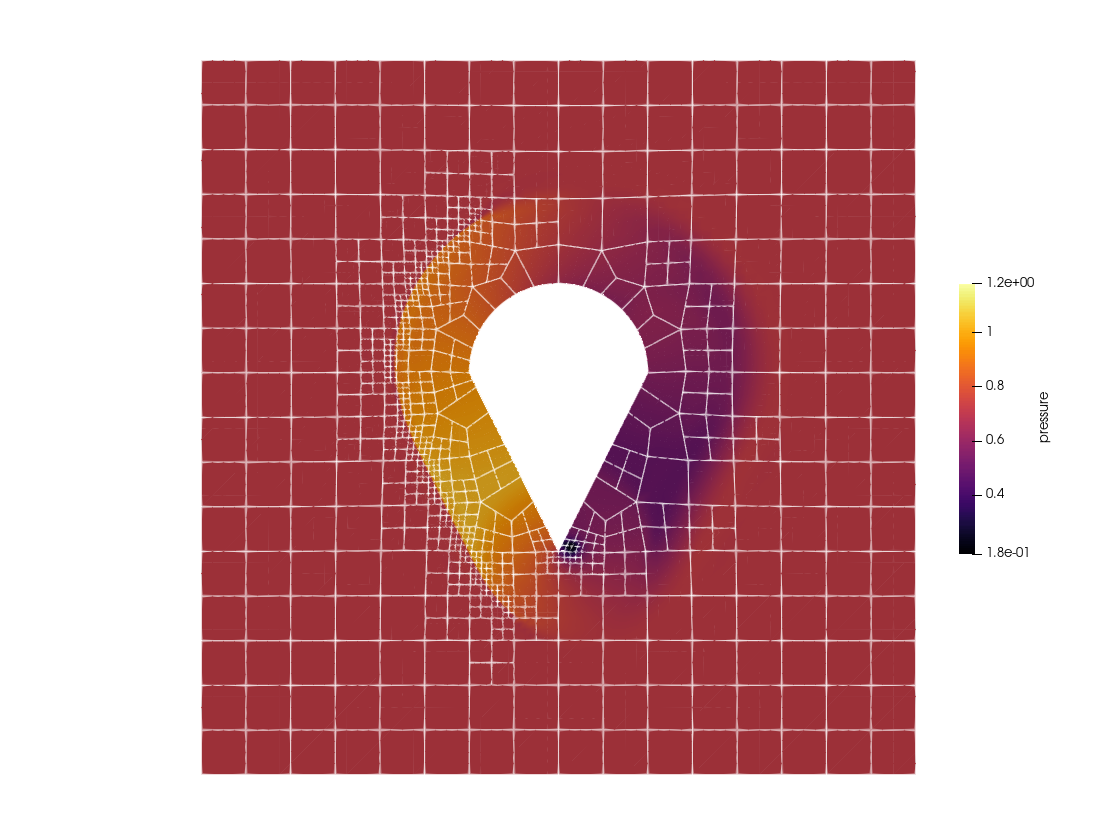564565# ## Package versions566567# These results were obtained using the following versions.568569using InteractiveUtils570versioninfo()571572using Pkg573Pkg.status(["Trixi", "OrdinaryDiffEqLowStorageRK", "Plots", "Trixi2Vtk", "HOHQMesh"],574mode = PKGMODE_MANIFEST)575576577